
在一般要测试一些脚本时可以用这种方式在电脑上跑命令
1、前提条件
adb下载
windwos端下载 https://dl.google.com/android/repository/platform-tools-latest-windows.zip
macos端下载 https://dl.google.com/android/repository/platform-tools-latest-windows.zip
linux端下载 https://dl.google.com/android/repository/platform-tools-latest-linux.zip
解压
2、改环境变量
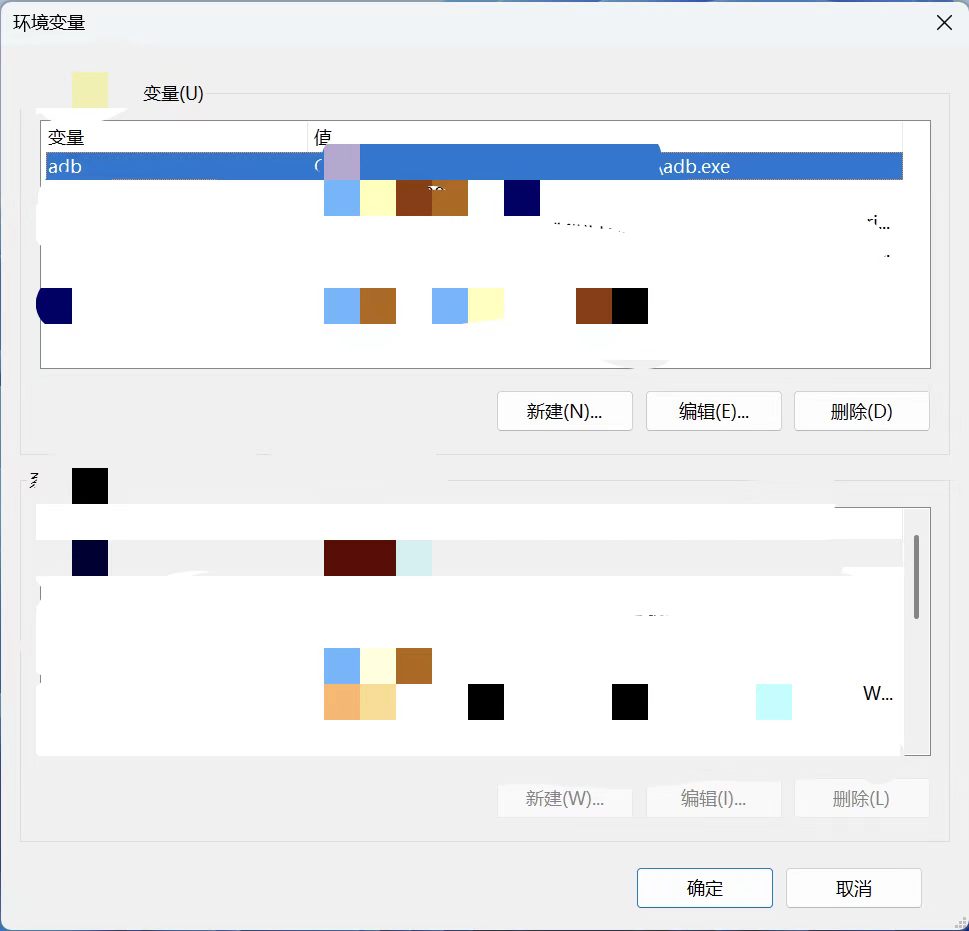
选择好解压下来的adb.exe就行了
查看已连接设备
.\adb devices
连接 MuMu 模拟器(常用端口:16384 / 5554)
.\adb connect 127.0.0.1:16384
断开设备
.\adb disconnect 127.0.0.1:16384
重启 adb 服务
.\adb kill-server
.\adb start-server
二、模拟操作(自动化脚本最常用)
点击坐标 (x,y)
.\adb shell input tap x y
滑动(起点x1 y1 → 终点x2 y2,时长300ms)
.\adb shell input swipe x1 y1 x2 y2 300
输入文字
.\adb shell input text “你要输入的内容”
按返回键
.\adb shell input keyevent 4
按 Home 键
.\adb shell input keyevent 3
三、安装 / 卸载 APP
安装 APK
.\adb install 路径/xxx.apk
强制覆盖安装(更新用)
.\adb install -r 路径/xxx.apk
卸载 APP(需要包名)
.\adb uninstall 包名
四、文件传输(电脑 ↔ 模拟器)
电脑 → 模拟器
.\adb push 电脑文件路径 /sdcard/
模拟器 → 电脑
.\adb pull /sdcard/文件名 电脑保存路径
五、查看与截图
截图并保存到电脑
.\adb shell screencap -p /sdcard/screen.png
.\adb pull /sdcard/screen.png 电脑路径
查看屏幕分辨率
.\adb shell wm size
六、APP 相关
查看当前打开的 APP 包名
.\adb shell dumpsys window | findstr mCurrentFocus
启动 APP
.\adb shell am start -n 包名/Activity名
强制停止 APP
.\adb shell am force-stop 包名
你现在最常用的(直接记这几个)
.\adb devices # 看设备
.\adb connect 127.0.0.1:16384 # 连 MuMu
.\adb shell input tap x y # 点击
.\adb shell input swipe x1 y1 x2 y2 300 # 滑动